Skip to content
framegrab.io
EN

English

More languages are coming later.

Video Frame Extractor

Extract frames from a video — or turn the whole video into frames — without uploading anything.

Drop a video here

MP4, WebM or MOV — anything your browser can play. Stays on your device.

How it works

How to extract frames from a video in 3 steps

The screenshots below are the real tool you see above, working on a short sample clip.

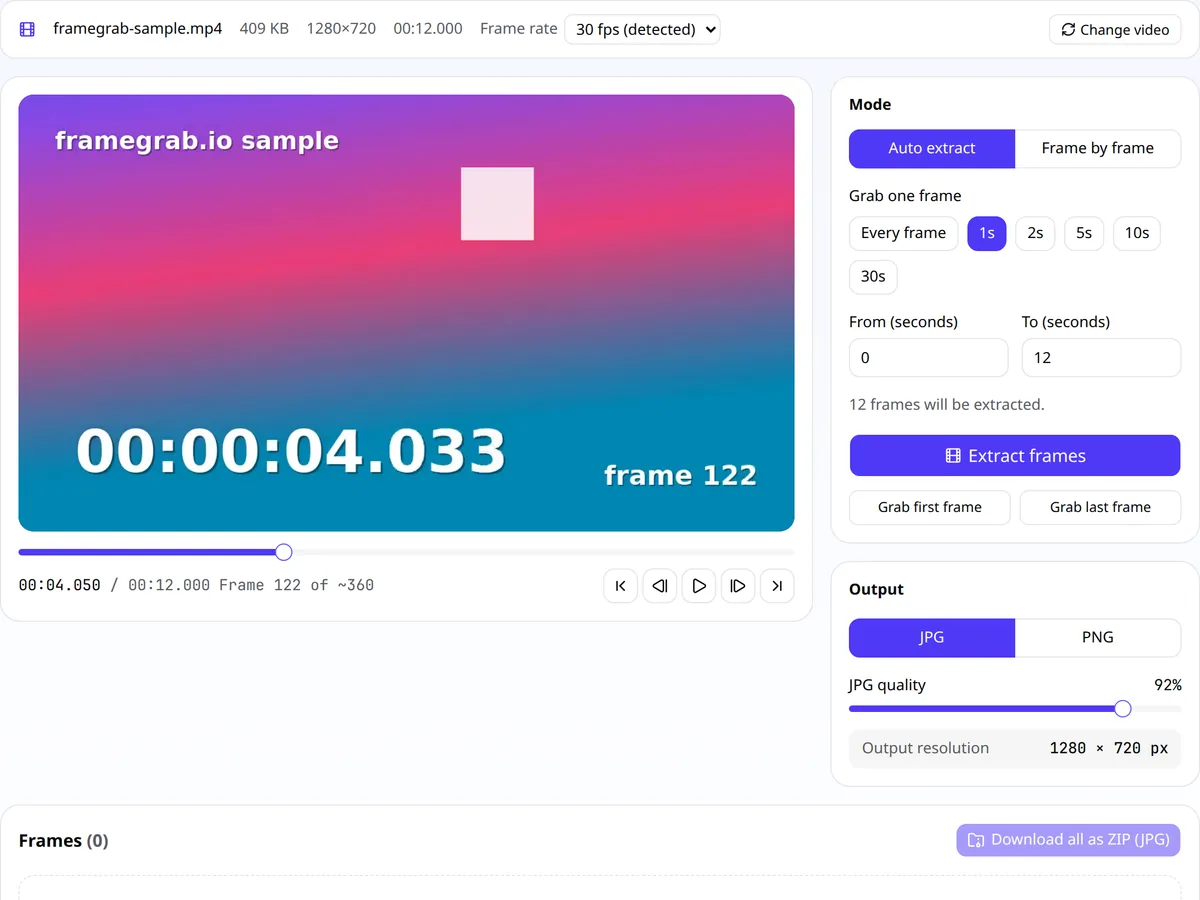
  1. The frame extractor with a video loaded, showing the preview, timeline and file details

    Step 1

    Open your video

    Drop a video onto the page or press “Choose video”. It opens instantly from your disk, and you'll see its resolution, length and frame rate.

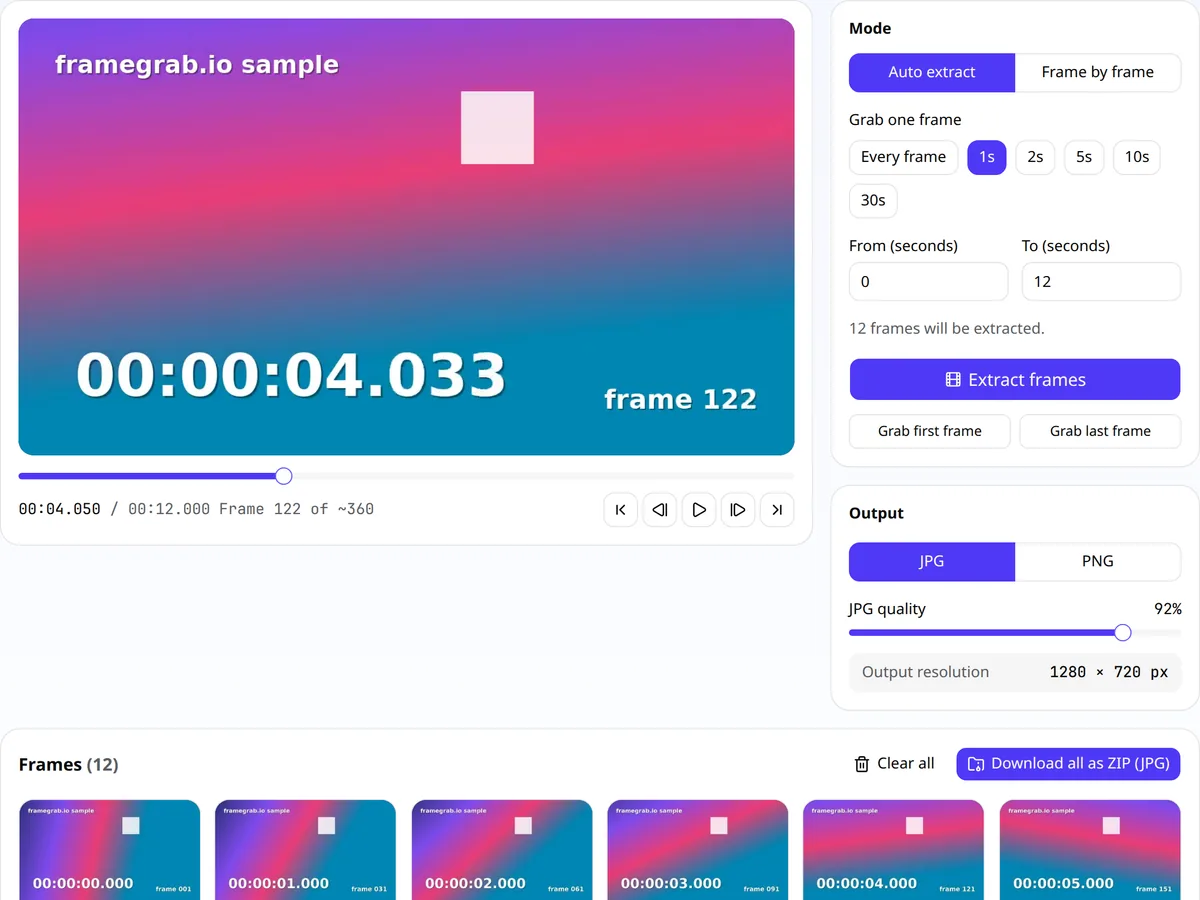
  2. Auto extract mode set to one frame per second with a grid of extracted frame thumbnails

    Step 2

    Extract by interval or frame by frame

    Pick Auto extract and an interval (every frame, 1, 2, 5, 10 or 30 seconds), or switch to Frame by frame and grab exact moments.

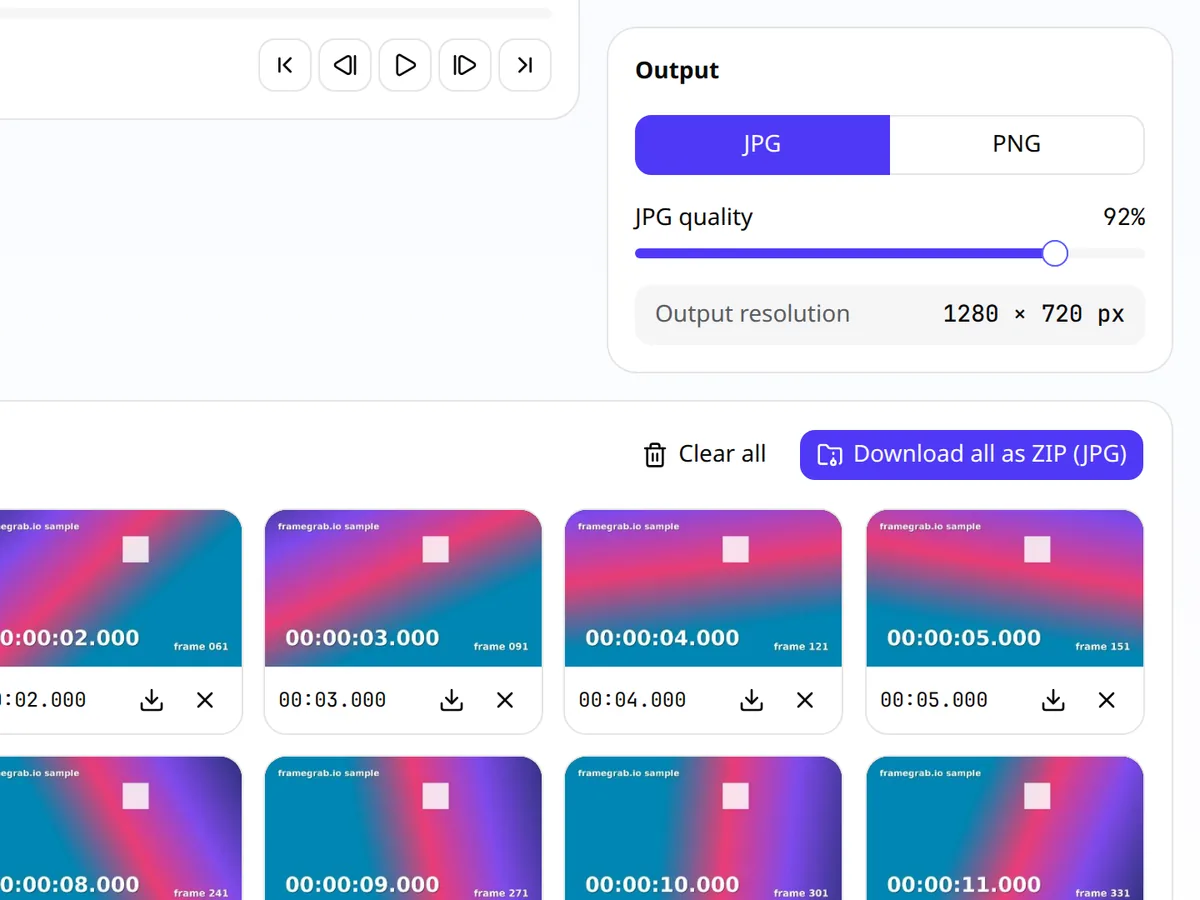
  3. Output settings with JPG selected, the native output resolution and the Download all as ZIP button

    Step 3

    Download JPG, PNG or a ZIP

    Choose JPG (with quality) or PNG, then download single frames or everything as one ZIP at the video's full resolution.

Mode 1

Auto extract: split a video into frames by interval

Auto extract is the fastest way to split a video into frames. Choose how often to take a frame — every frame, or once every 1, 2, 5, 10 or 30 seconds — and press Extract frames. framegrab.io jumps through the video at those points and drops each frame into the grid as it goes, so you can watch progress and stop at any time.

Use a From / To range to cover only part of a long video. A 10-minute video sampled every 5 seconds gives you 120 evenly spaced frames — ideal for contact sheets, storyboards and datasets. Choose Every frame to turn a short clip into its complete image sequence; a 10-second clip at 30 fps becomes 300 images.

To keep your browser responsive, one run can hold up to 2,000 frames. For longer image sequences, export a range as a ZIP, clear the list and continue with the next range.

Mode 2

Frame by frame: a video viewer for exact moments

Sometimes you need one particular frame, not a hundred. Frame-by-frame mode turns framegrab.io into a frame-by-frame video viewer: drag the timeline to get close, then use the previous / next frame buttons to move exactly one frame at a time. The counter shows the timestamp and frame number so you always know where you are.

Press Grab this frame whenever you see a frame you want. It joins the grid, where you can download it alone or with the others. Keyboard users can click the video and use←→ to step,Shift+ arrows to jump one second,Space to play or pause andG to grab.

Need the very first or very last frame — for a thumbnail, a loop point or a “before and after”? The Grab first frame and Grab last frame buttons do it in one click, in either mode.

Output

JPG or PNG: which format should you choose?

You can switch format at any time before downloading — frames are encoded when you download them, not when you extract them.

Choose JPG when…

  • you want small files to share, post or email
  • you're exporting many frames into a ZIP
  • the frames are photos or live-action footage

The quality slider (50–100%) trades file size for detail. 90–95% is visually lossless for most video.

Choose PNG when…

  • you'll edit the frame further or need pixel-exact results
  • it's for an ML dataset where compression artifacts matter
  • the video has text, UI, line art or flat colors

PNG is lossless, so files are typically 5–10× larger than JPG.

Either way, PNG can't add detail that isn't in the video: the video itself is already compressed, so PNG simply avoids adding a second round of compression.

Export resolution and honest limits

Frames are exported at the video's native resolution — the same width and height your browser decodes, shown under “Output resolution” in the tool. A 1080p video gives 1920 × 1080 images and a 4K video gives 3840 × 2160 images. Nothing is upscaled, downscaled or cropped. That's the ceiling: no frame extractor can produce more real detail than the video contains.

Because everything runs inside your browser, a few limits come from the browser rather than from us:

  • Codecs: only videos your browser can play can be opened. If a file won't load, try another browser or convert it to MP4 (H.264).
  • Memory: ZIP files are built in memory before saving. Thousands of large PNGs can be too much for a phone; export in smaller batches or use JPG.
  • Canvas size: Safari on iPhone and iPad limits a canvas to about 16.7 megapixels, so 8K frames may fail there. 4K (8.3 megapixels) works.
  • HDR and color: HDR (HLG/PQ) video is converted to standard 8-bit color when drawn, so HDR highlights won't be preserved in the exported image.
  • Variable frame rate: phone recordings sometimes vary their frame rate, which can occasionally cause a duplicated or skipped frame when extracting every frame.

Use cases

What people extract video frames for

A frame extractor is a small tool with a surprising number of jobs.

FAQ

Frequently asked questions

Is my video uploaded to a server?

No. When you choose or drop a file, your browser opens it from your own disk and decodes it with its built-in video player. Frames are drawn onto a canvas inside the page and saved straight to your Downloads folder. framegrab.io is a set of static files with no upload endpoint, so there is nowhere for the video to go. Once the page has loaded you can even disconnect from the internet and the tool keeps working.

Which video formats are supported?

Any video your browser can play. In practice that means MP4 with H.264 works everywhere, WebM (VP8/VP9, and AV1 in recent browsers) works in Chrome, Edge and Firefox, and MOV files work when they contain H.264 or a codec your browser supports. HEVC/H.265 (common on iPhones) plays in Safari and in Chrome or Edge on devices with hardware support. Formats such as AVI, ProRes, WMV and FLV usually can't be decoded by browsers; convert them to MP4 (H.264) first.

Can I grab just the last frame of a video?

Yes. After loading your video, press “Grab last frame” and it appears in the frame list ready to download. You can do the same with “Grab first frame”, or jump to the end with the last-frame button in the viewer and step backwards one frame at a time if you need a slightly earlier frame.

Is there a watermark on the extracted frames?

No. Each frame is drawn from the video onto a clean canvas at its native resolution and encoded as JPG or PNG. Nothing is added: no watermark, no logo, no border.

What is the maximum video file size?

There's no upload limit because nothing is uploaded, and framegrab.io sets no file-size cap. The browser reads the video from your disk as it plays, so multi-gigabyte files usually open fine on a computer. The practical limit is your device's memory: thumbnails are kept in memory while you work, and a ZIP is assembled in memory before it's saved. Hundreds of 1080p JPGs are fine on most laptops; thousands of 4K PNGs may exhaust memory, especially on phones. To stay safe, extraction is capped at 2,000 frames at a time — download them, clear the list, and continue with the next time range.

Can I extract every single frame, and how accurate is frame stepping?

Yes: choose “Every frame” in Auto extract mode, optionally with a From/To range. Browsers don't report a video's frame rate, so framegrab.io measures it by timing a few decoded frames and shows the result next to the file name — you can correct it there if needed. Each frame is grabbed from the middle of its display time, which makes stepping reliable for constant-frame-rate video. Phone recordings with a variable frame rate can occasionally produce a duplicate or skip a frame.

Does it work on iPhone and Android?

Yes, in current versions of Safari, Chrome, Firefox and Samsung Internet. Choose a video from your gallery or files, extract frames and download them. Phones have less memory than computers, so keep ZIP exports smaller there, and note that very large frames (above roughly 16 megapixels, such as 8K video) can exceed Safari's canvas size limit on iOS.

How are the downloaded frames named?

Each file is named after your video, followed by its position in the list and its exact timestamp, for example holiday_0003_00-00-12-500.jpg for the third frame at 12.5 seconds. That makes it easy to sort frames and match them back to the original video, which is especially useful for datasets and analysis.